 IronScript
IronScript
IronScript
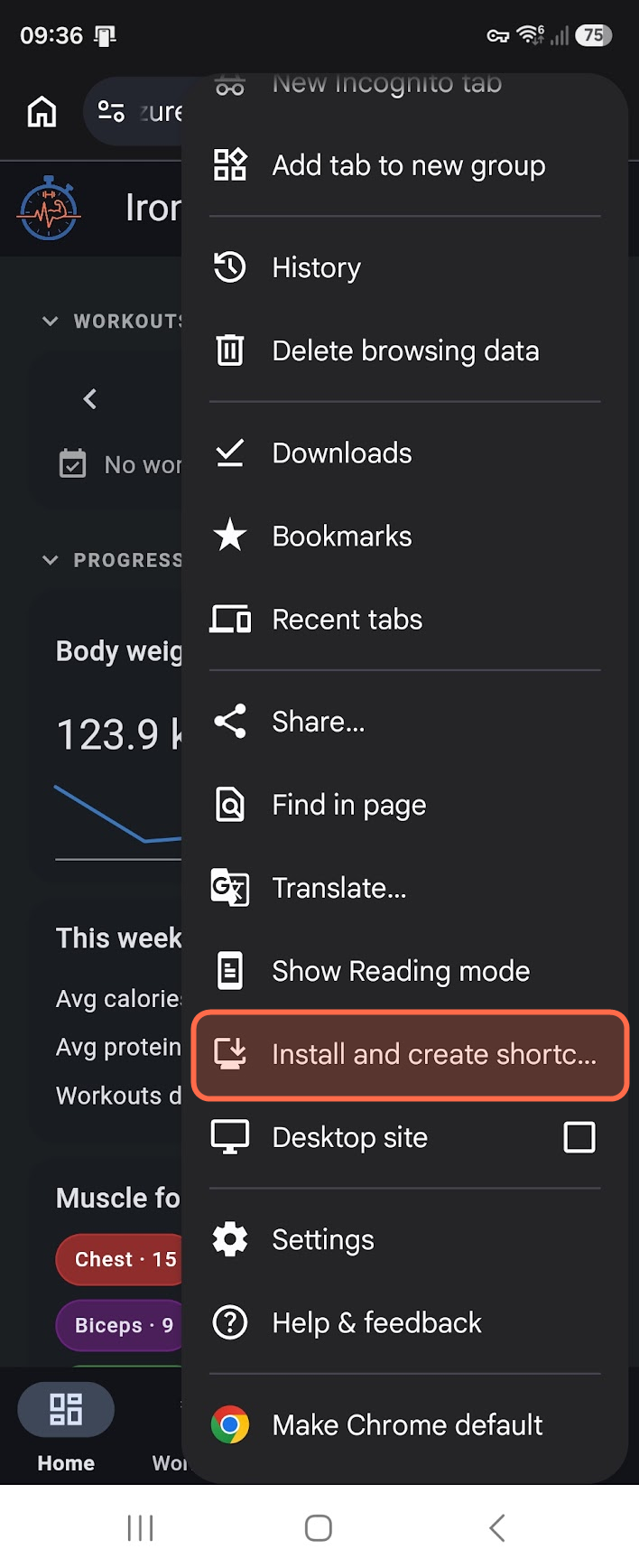
IronScript is a web app, so you add it straight from your browser. There is no app store and nothing to download.
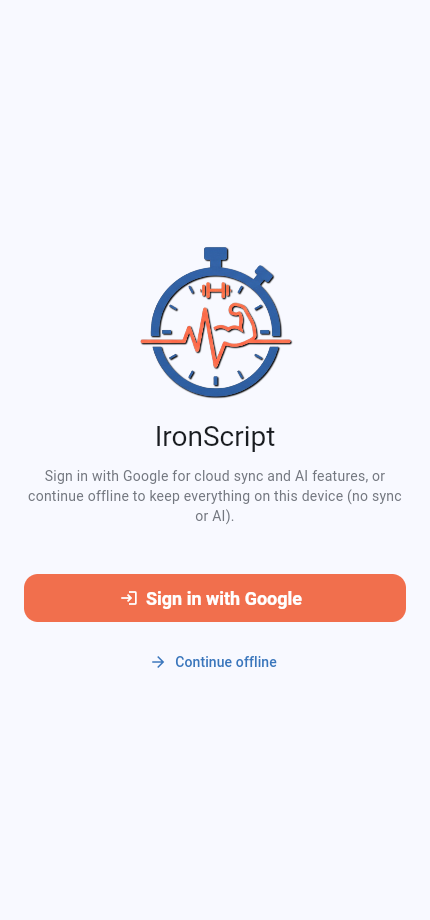
The first screen lets you choose how your data is stored.
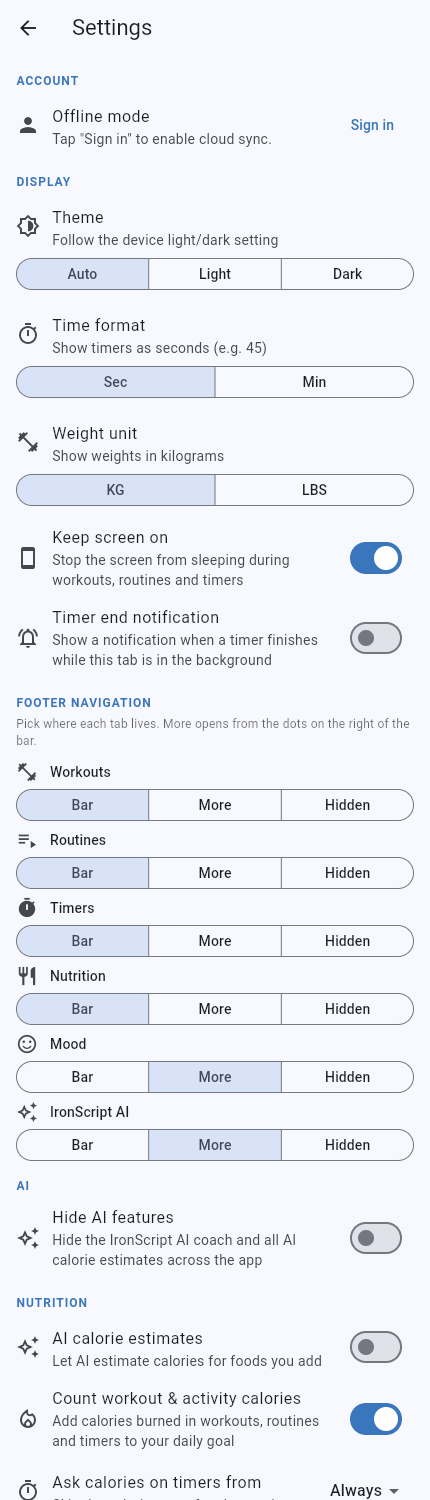
Adjust a few basics before you start logging.
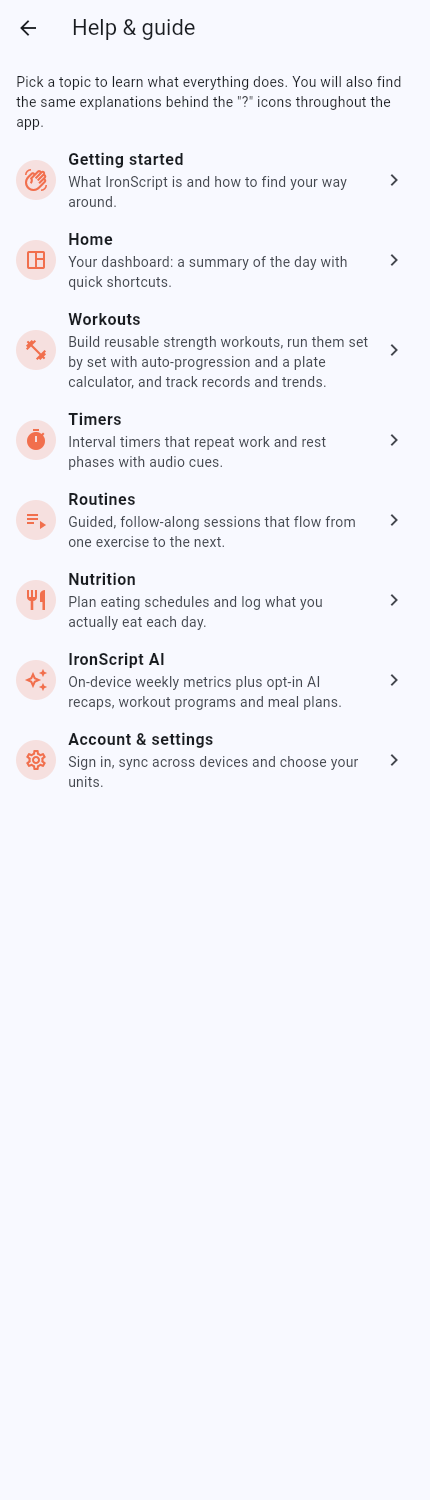
Where a screen needs it, there is a short in-app guide, and you can open these docs from your profile.
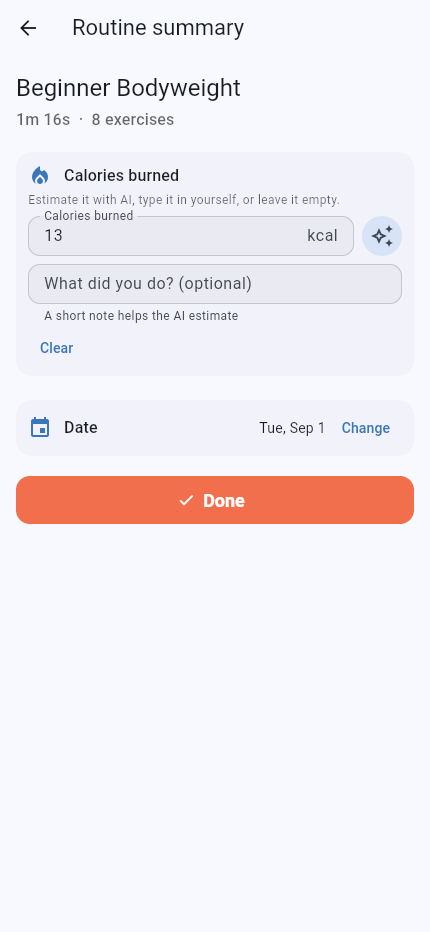
A workout, routine or timer can add to how much you can eat that day.
The same setting applies to maintenance days. Keep maintenance today uses the Maintenance estimate in Trends, based on your latest valid weight and usual activity level, then adds today's logged workout, routine and timer calories once when this setting is on. Food logs and From your data never determine this base. This is a calorie budget, not measured calorie burn.
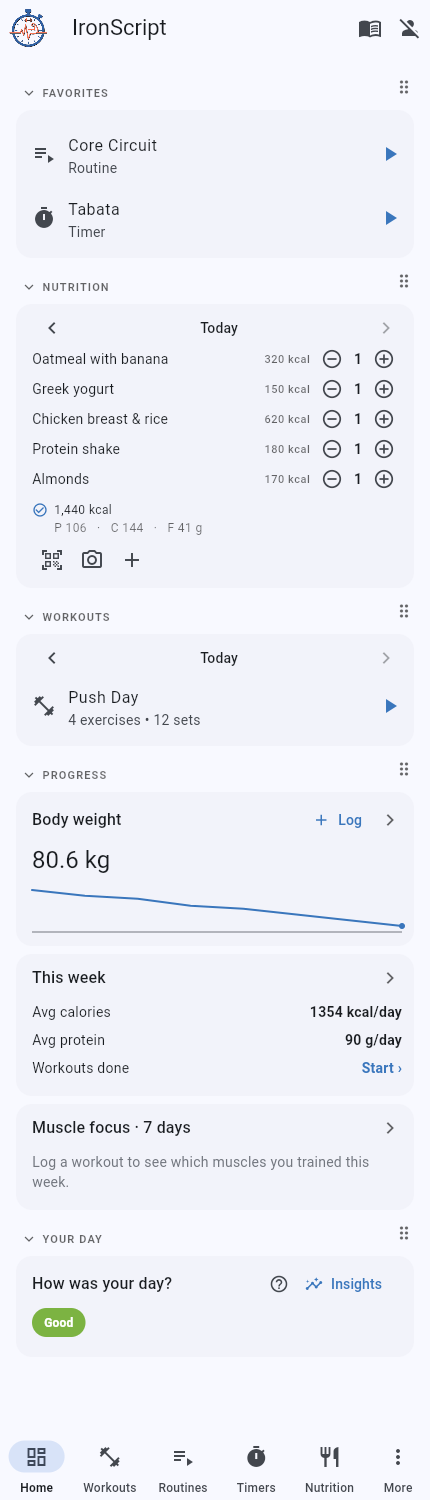
Everything you log appears on the dashboard and feeds the coach.
One screen that sums up today and gives one-tap shortcuts into the rest of the app.
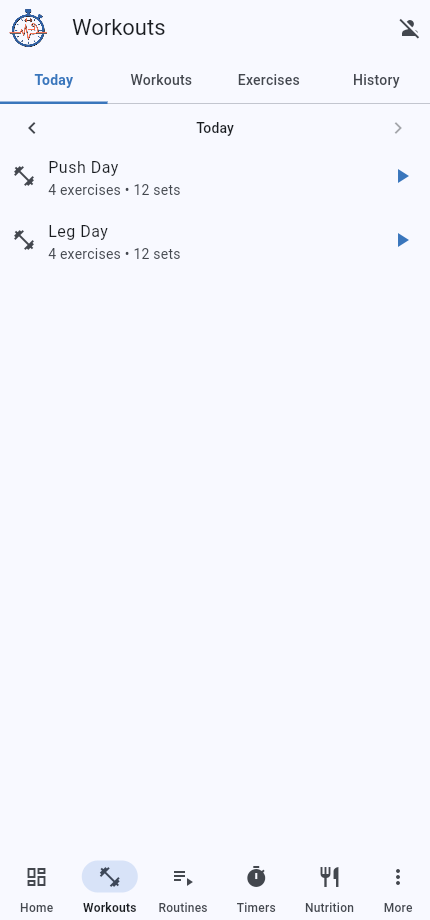
The workouts scheduled for the current weekday, each ready to start.
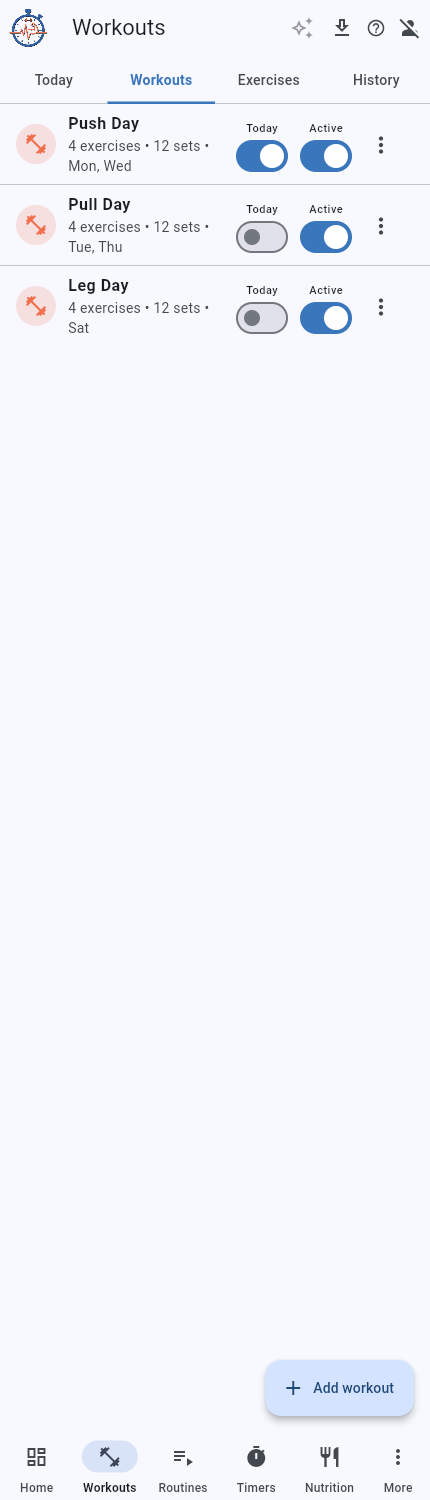
Your full library of strength workouts, scheduled or not.
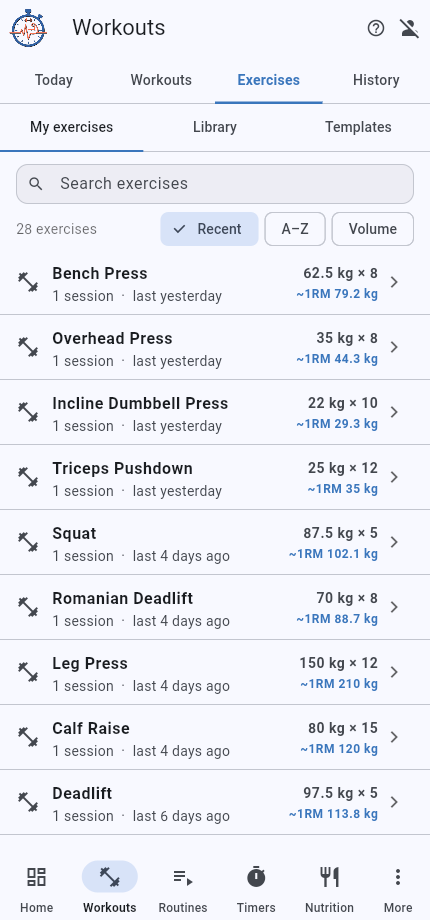
A list built from your history, one row per exercise you have actually done, each with its own trend.
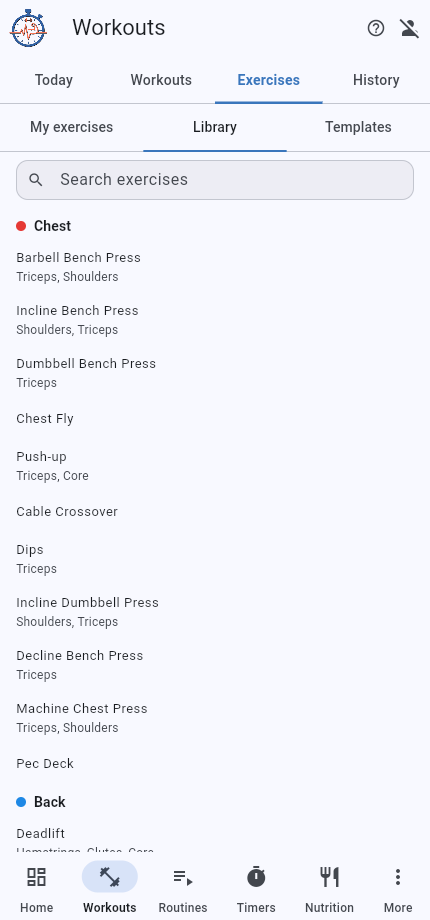
A browsable list of exercises grouped by muscle, with names and modes ready to drop into a workout.
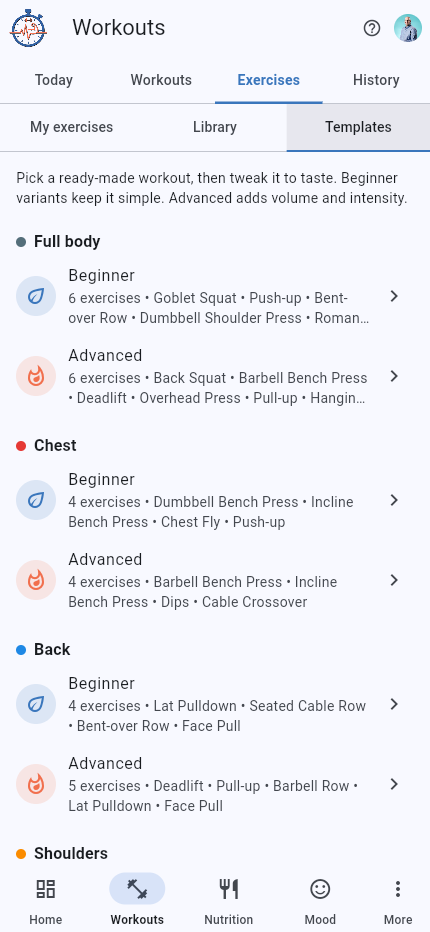
Starter workouts grouped by level, from beginner full-body to advanced splits.
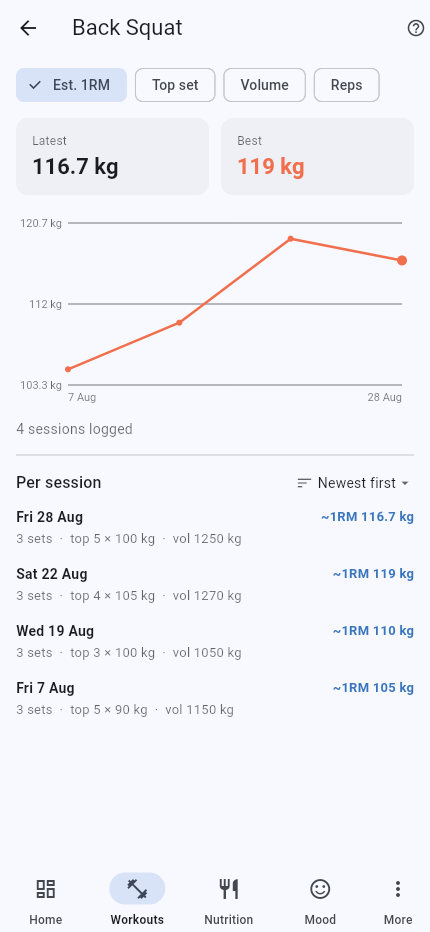
The trend for a single exercise, with a chart and every set you have logged for it.
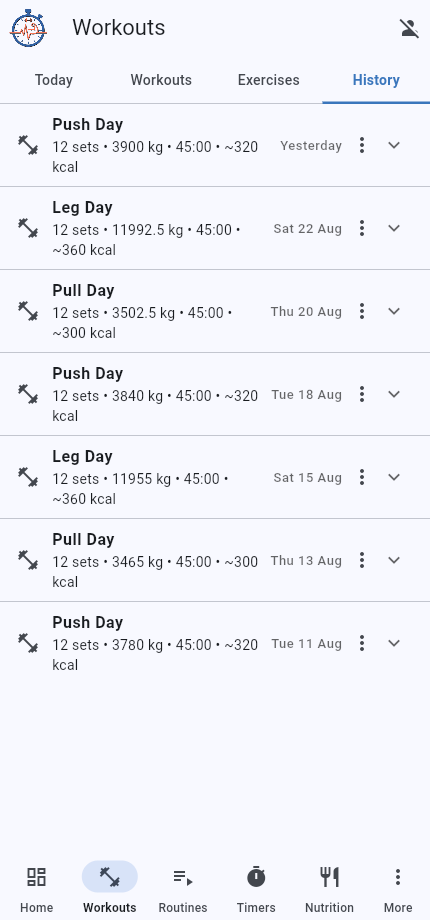
A dated log of completed workouts, with what you did and the calories you burned.
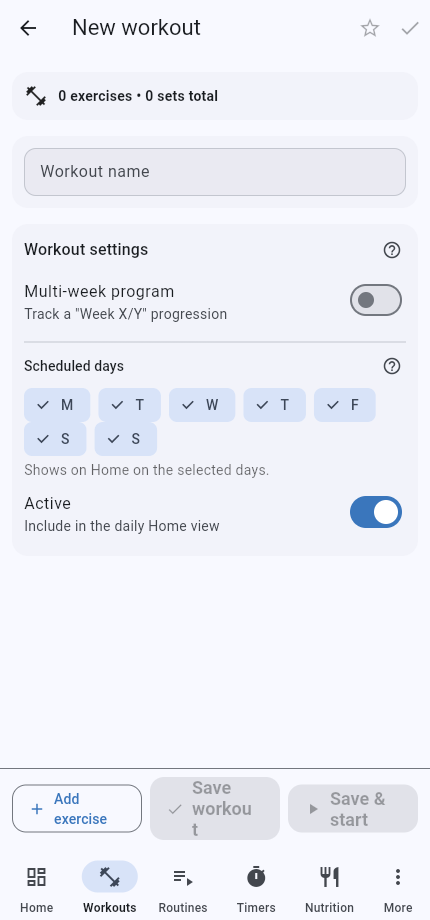
The editor where you name a workout, schedule it, and add exercises with sets, reps and progression.
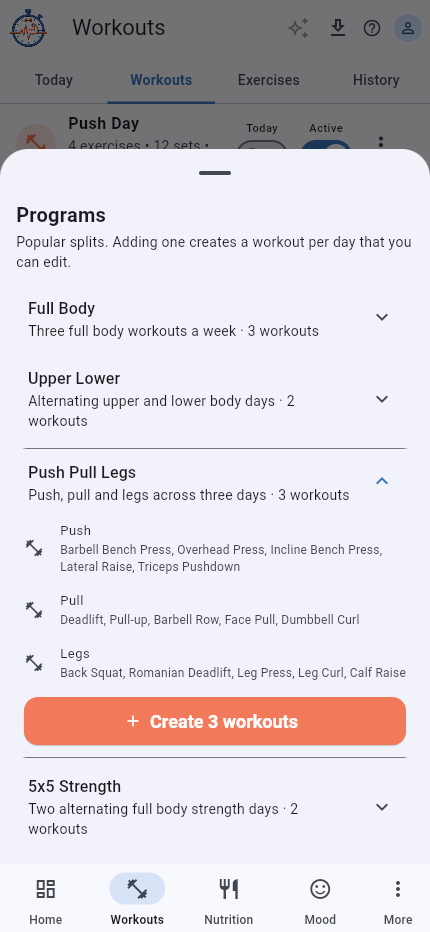
Create a set of ready-made workouts for a popular training split, then edit each workout to suit you.
These built-in splits are starting points, not fixed plans. You can edit or remove the workouts after adding them.
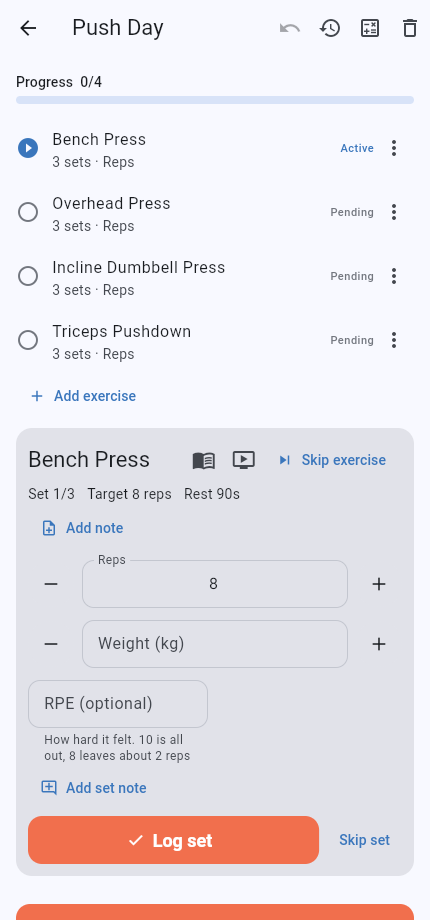
The run screen walks you through each exercise, logging your reps and weight with a rest timer between sets.
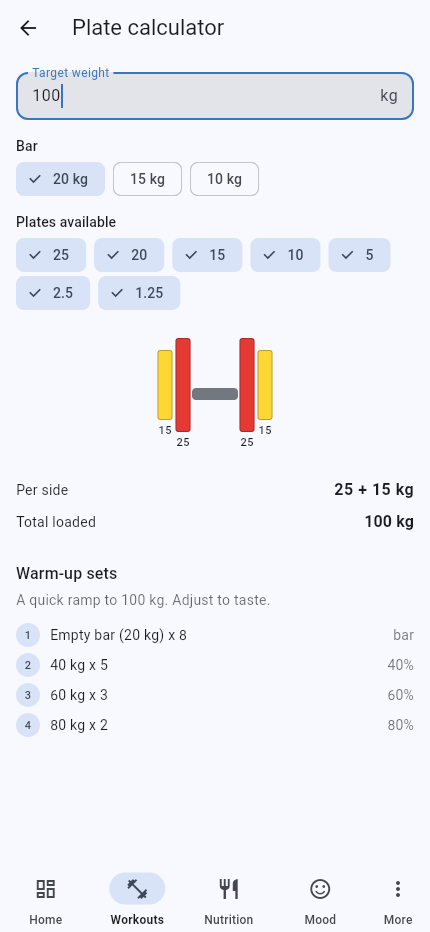
A helper that shows which plates go on each side of the bar for a target weight.
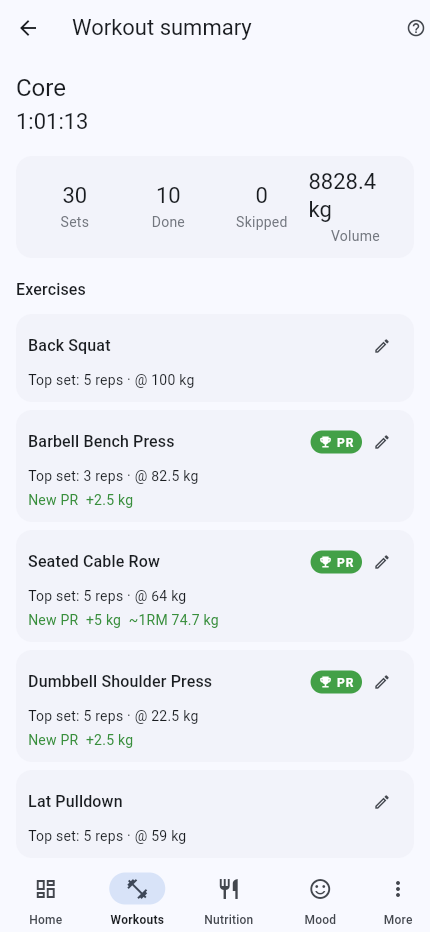
The screen you get when you finish a workout, before it saves to History.
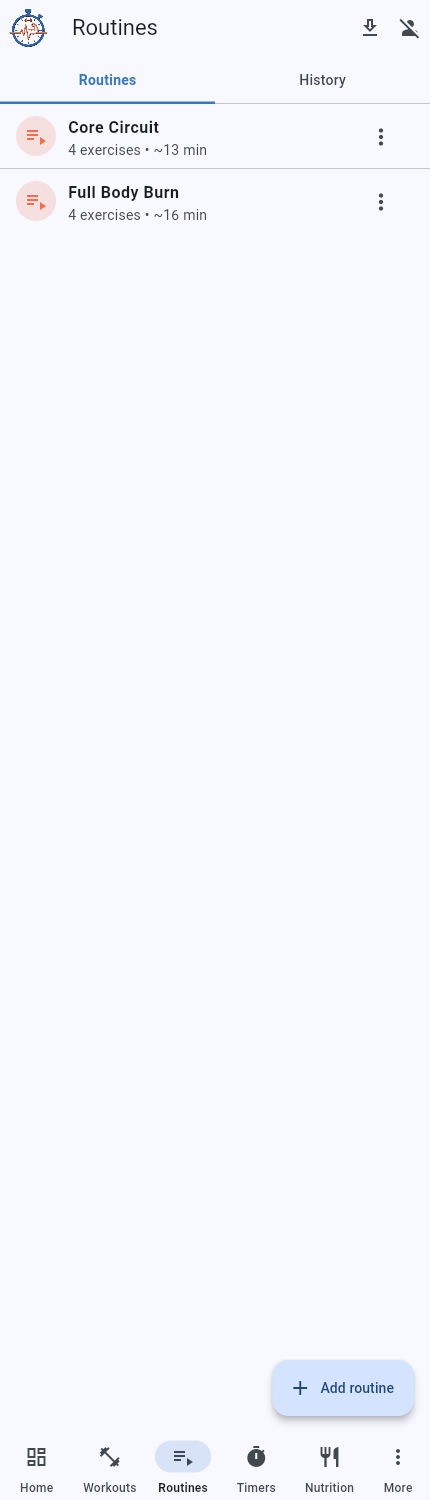
Your list of routines, circuits that play themselves with countdowns and audio cues.
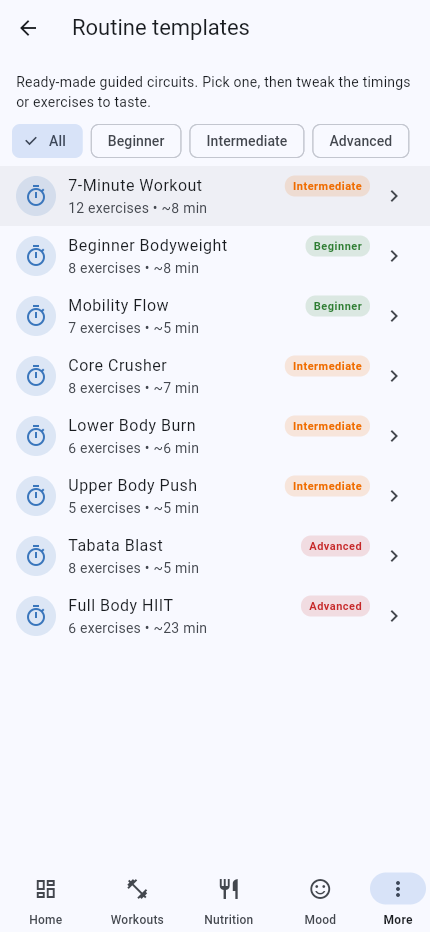
Browse ready-made guided circuits, preview their exercises and starting timings, then make them your own.
AI routine generation requires sign-in and AI access. The choices you submit are sent to Google Gemini to draft the routine; no personal data is sent.
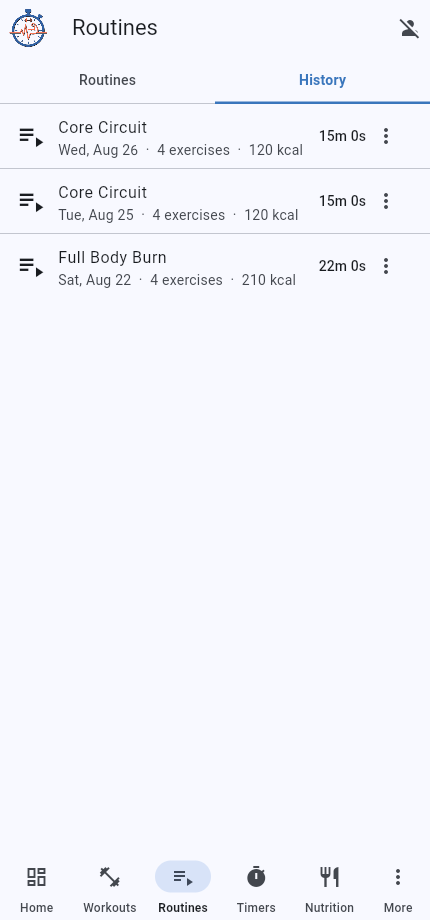
Every finished routine, with its date, duration and calories burned.
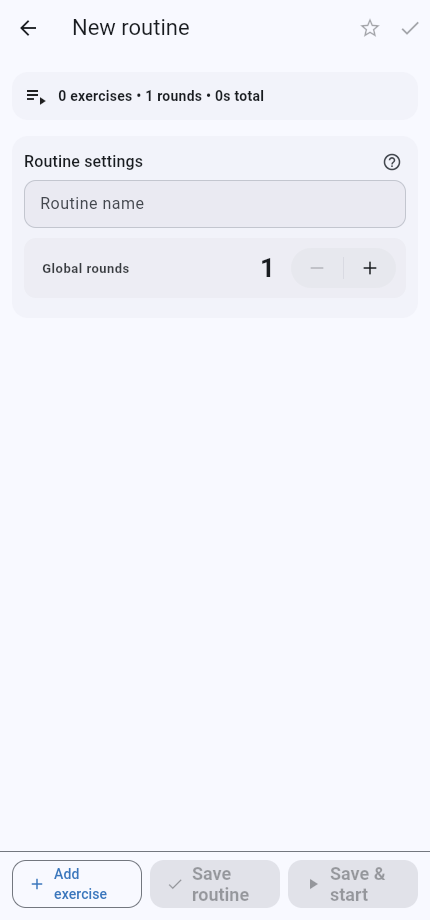
The editor for a guided circuit, with a prep, work and rest time per exercise.
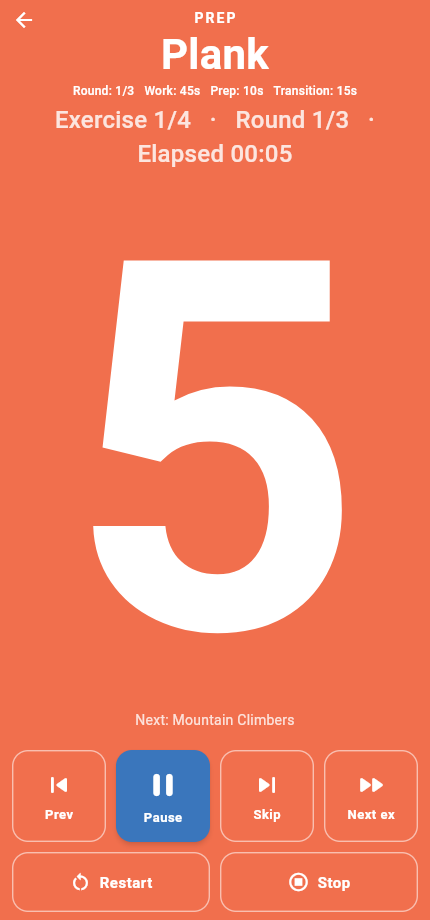
The runner counts down each step, speaks the next move and advances automatically through every round.
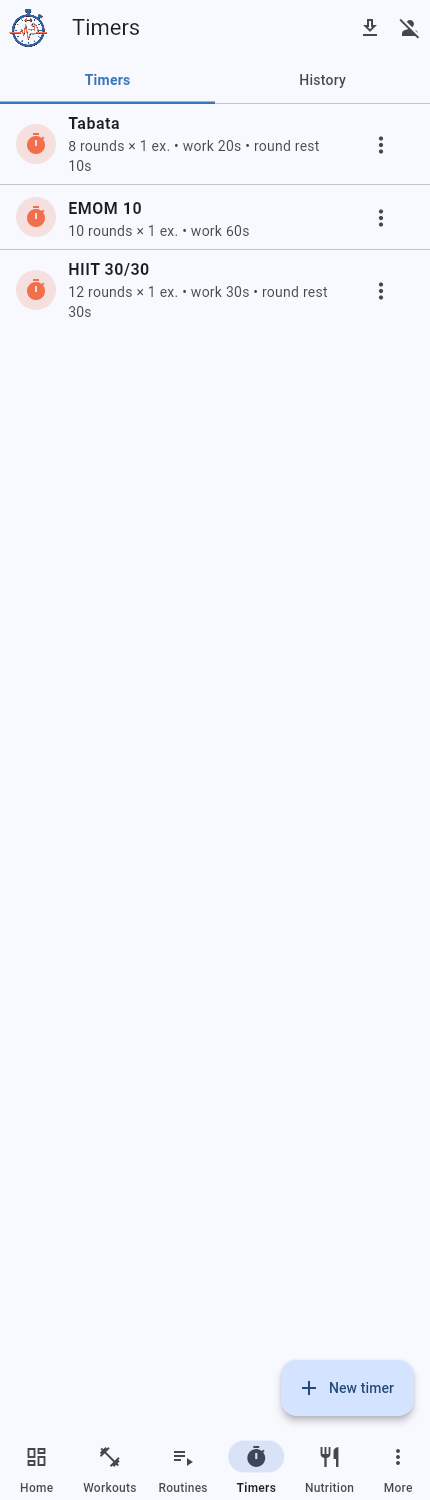
Your saved work-and-rest timers for EMOM, Tabata and HIIT.
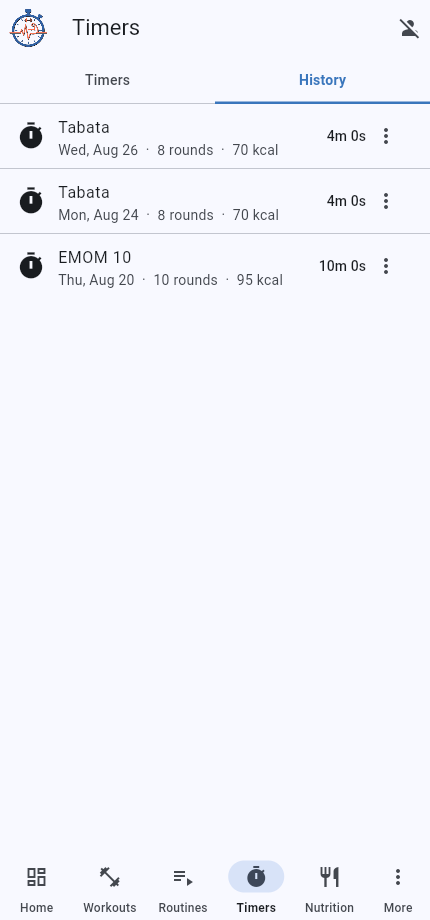
Every completed timer, with its date, duration and calories burned.
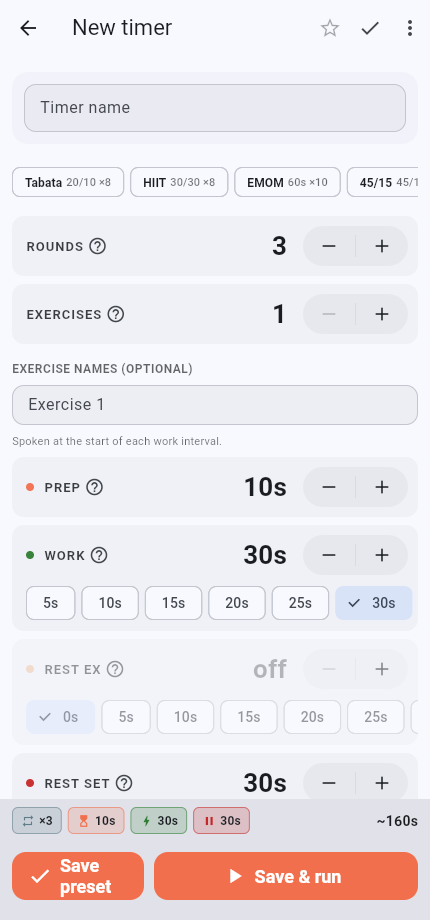
Set rounds, prep, work and rest, and optionally name an exercise per round.
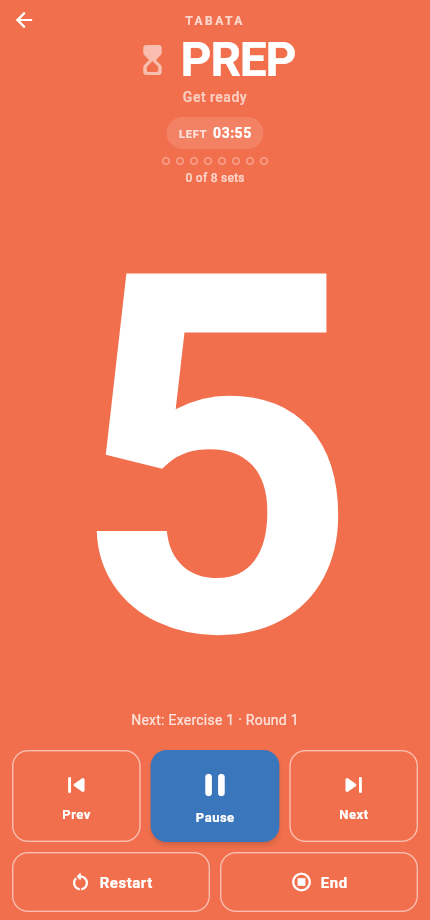
A big countdown with colours and beeps for each work and rest block.
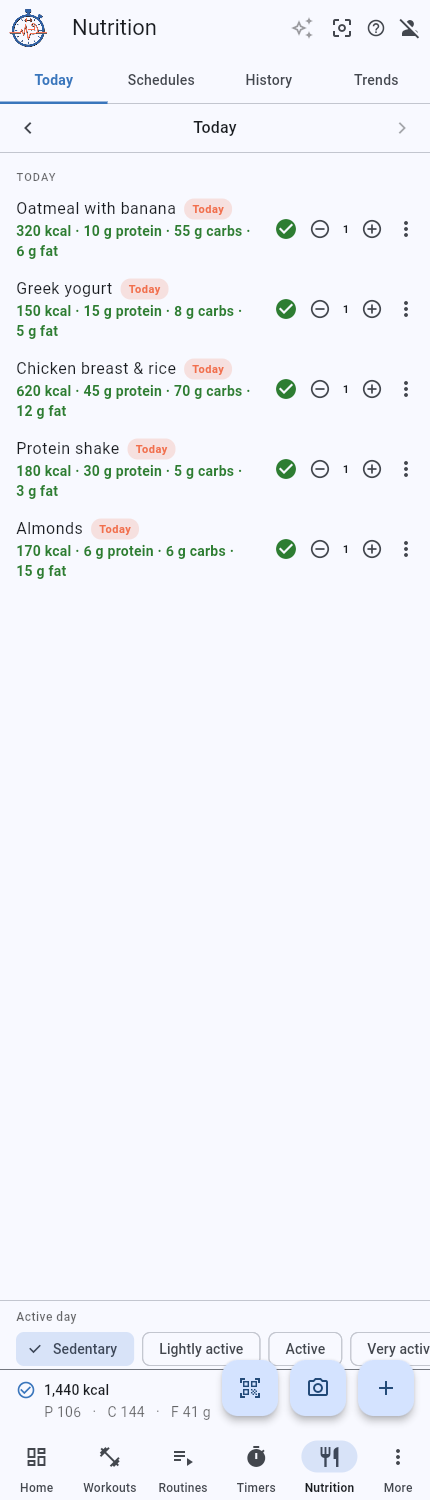
Track calories and macros for the day against a goal you set.
For your own nutrition, Keep maintenance today is an independent option for today only. Its base is the rough Maintenance estimate in Trends, based on your latest valid weight and usual profile activity. Food logs and From your data never determine this base. You can enable it without any food logs. The base follows weight and profile updates throughout today, including on Home and in focus mode. An already enabled day updates automatically. Past days keep their saved values.
You can still select the day's lifestyle with Active day while maintenance is on. Logged workout, routine and timer calories are added through the existing Count workout and activity calories setting. Your permanent daily calorie target and macro targets stay unchanged. Turning maintenance off restores your usual target without changing your activity choice. Tomorrow uses your usual target again. This option is not available for other people you track.
No historical training or lifestyle calories are subtracted from the weight based estimate. Today's activity delta and logged training calories are added once. These are calorie budget choices, not measured calorie burn. If the estimate is unavailable, add a valid weight and check your usual activity level. An enabled day keeps its last saved estimate and can still be turned off.
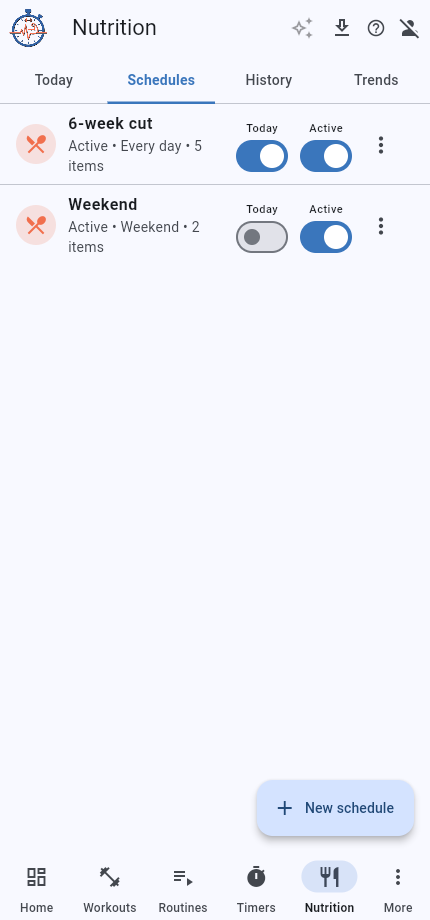
Eating plans you follow on set days, each with its own items and daily targets.

Track water plus custom drinks like coffee or soda, each with its own tile on Today.
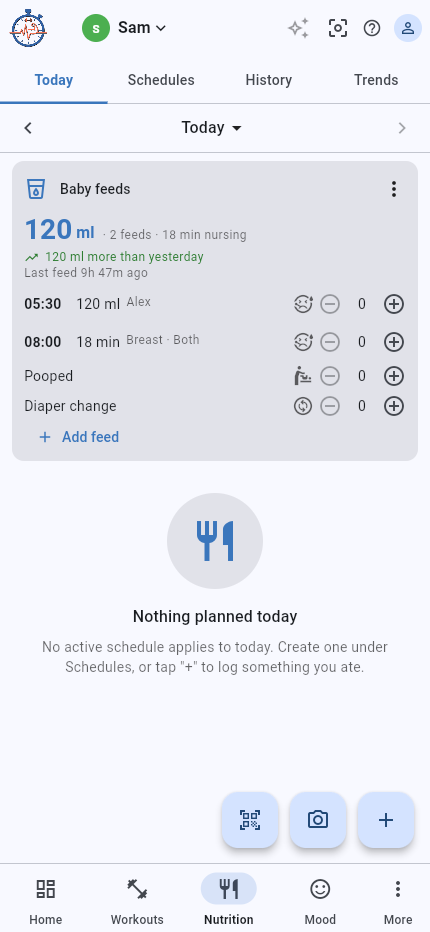
Log each feed for a person, a bottle or pumped feed in millilitres or a breast feed in nursing minutes, each with its own time.
Trends shows a bar per day and per week, green for the most and red for the least, with the volume and the first to last feed time. Counts follow your Customize tracking choices, including separate diaper changes. Days with selected tracking but no feeds are included. The Growth card keeps length and head circumference with WHO percentiles. In the Android app, Feed reminder in the card menu reminds you a set time after the last feed. Export PDF report makes a report for the last 7 days, 30 days or your own range. It includes separate diaper changes and timestamped tracking details for all categories, even when hidden. Earlier counts without recorded times remain in the daily summary. Turn on Show on Home to keep the person on your Home screen.
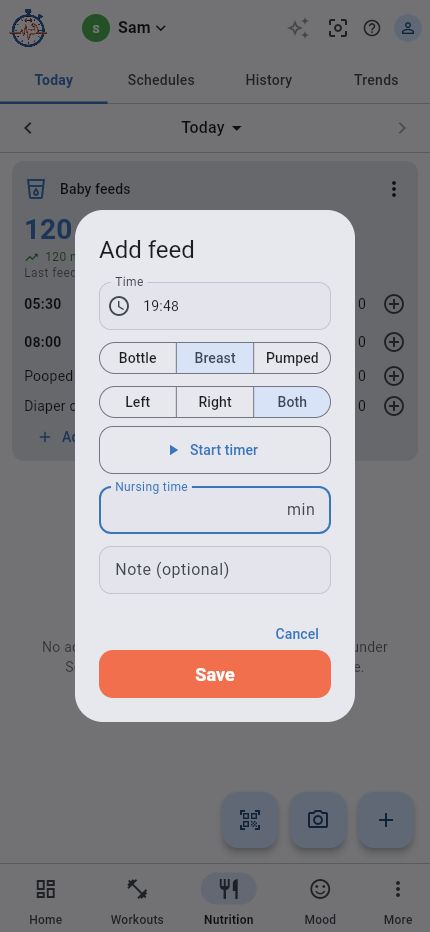
Use the feed dialog to record when a feed happened and how much was given, or how long nursing lasted.
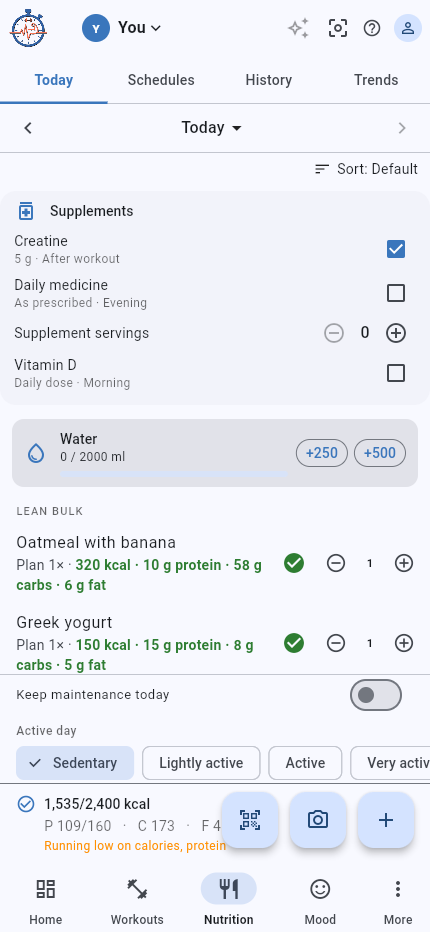
Keep a simple daily checklist of supplements or medicines like creatine, vitamins or a morning pill. It is a log, not a reminder or a medical tool.
Give supplements their own Today tab with Separate Supplements in Settings. Supplements sync across your devices, and for a crew member you co-own both owners tick the same list.
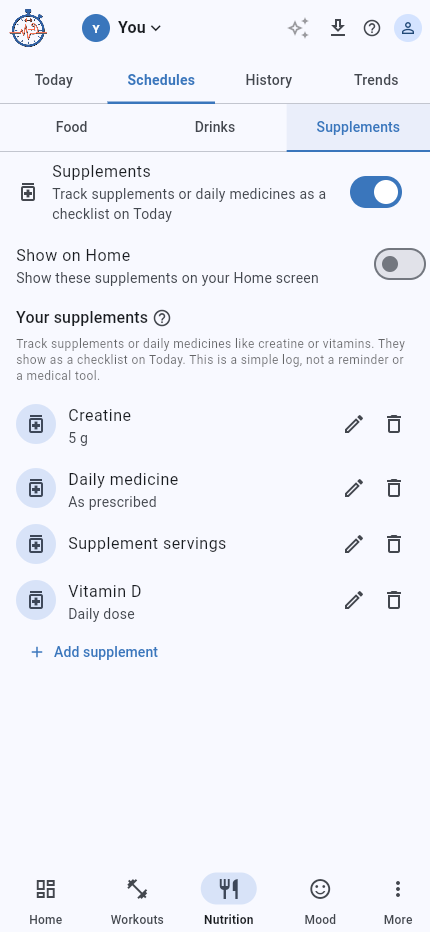
Set up the supplements or daily medicines you want to log for the selected person.
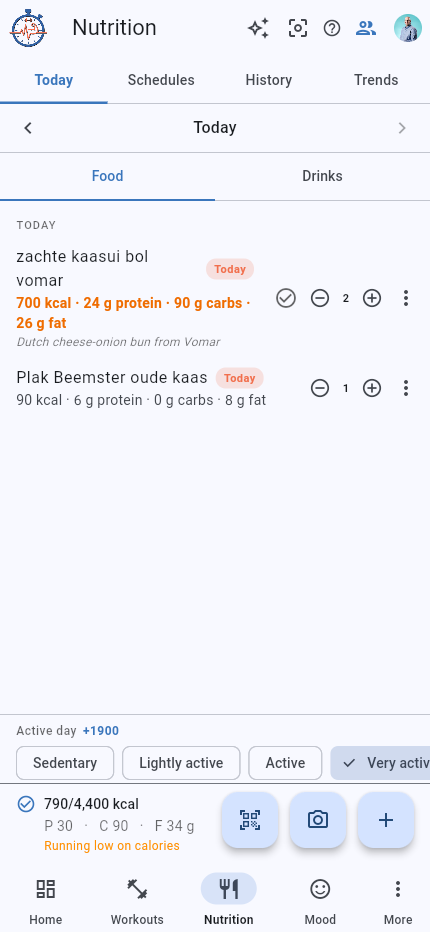
Prefer to keep eating and drinking apart? Turn on Separate Food and Drinks to get two tabs on Today, each with its own list and calories.
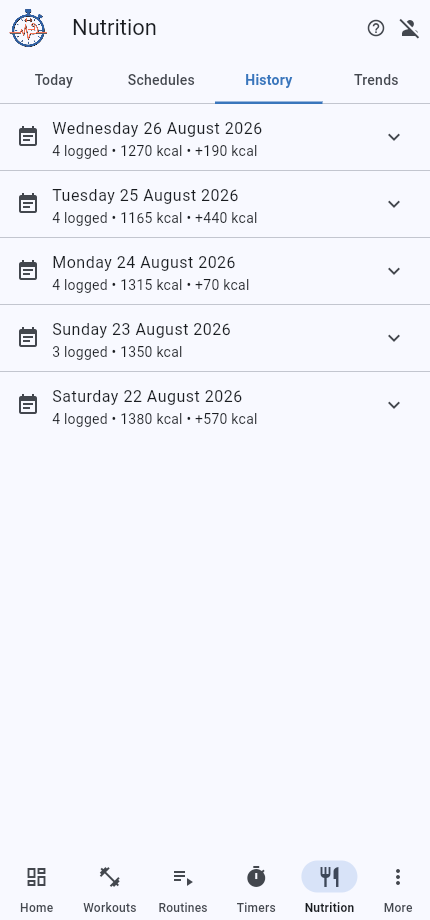
A dated log of what you ate, with calories and macros per day.
Saved maintenance days show Maintenance day, even when no food was logged. In split mode the marker appears in Food, not Drinks. Only checked food contributes to calorie and macro totals.
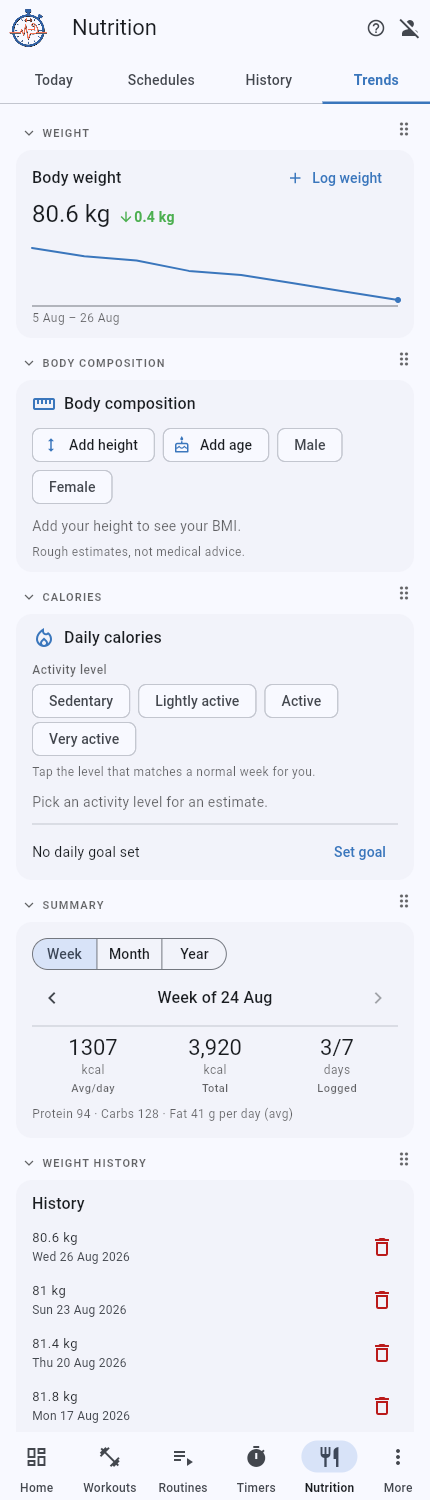
The long view for body weight and eating, and where your daily calorie goal is set.
Use a screenshot from a scale or fitness app to fill in your weight and body fat percentage.
The first use asks for consent. The selected image is sent to Google Gemini for reading and is not stored by IronScript. Crop out anything private before you choose it.
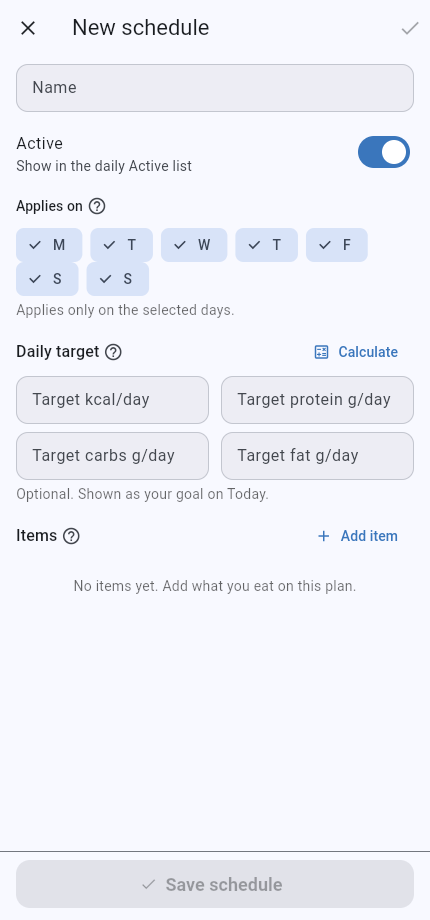
The editor where you name a plan, set its days and targets, and list the foods you eat on it.
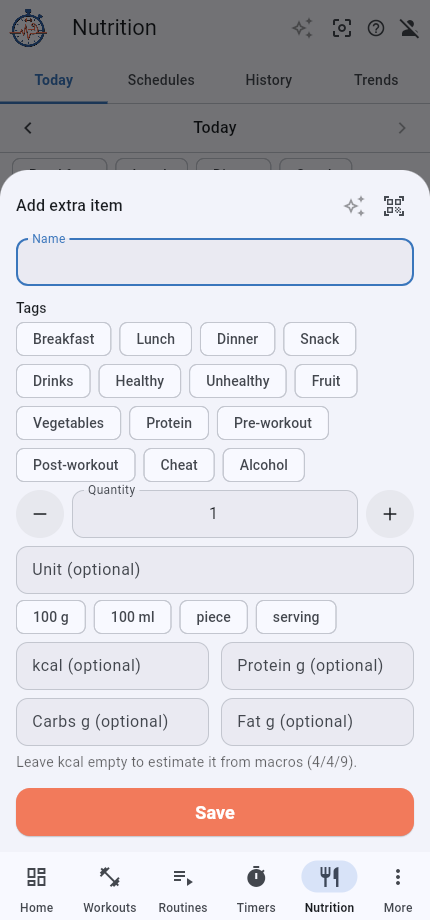
The quick sheet for adding anything you eat, with tags, quantity and macros.
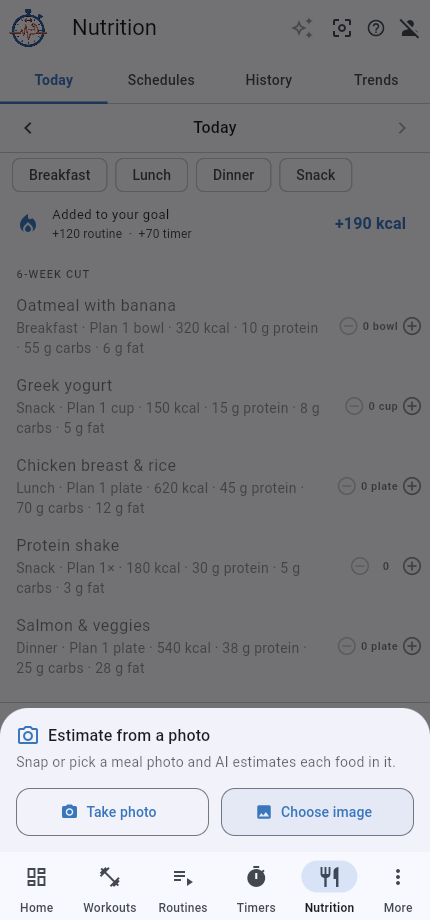
Point your camera at a meal and IronScript AI names the foods and estimates each one.
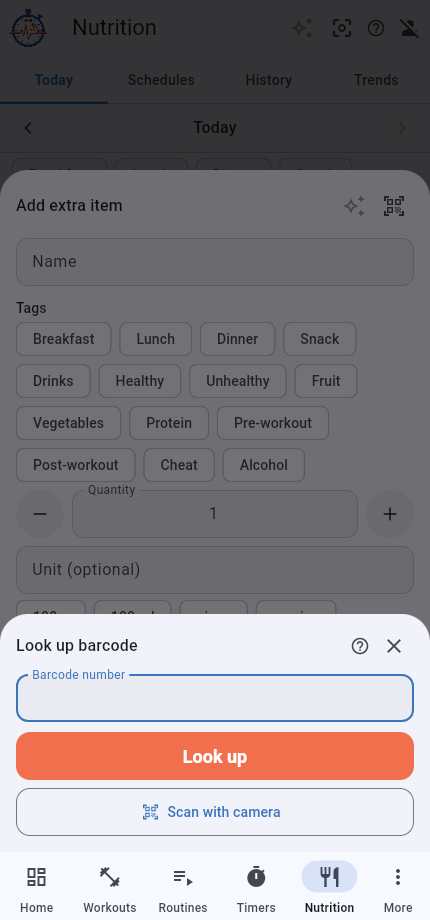
Look a packaged food up by its barcode and add it with the right macros.
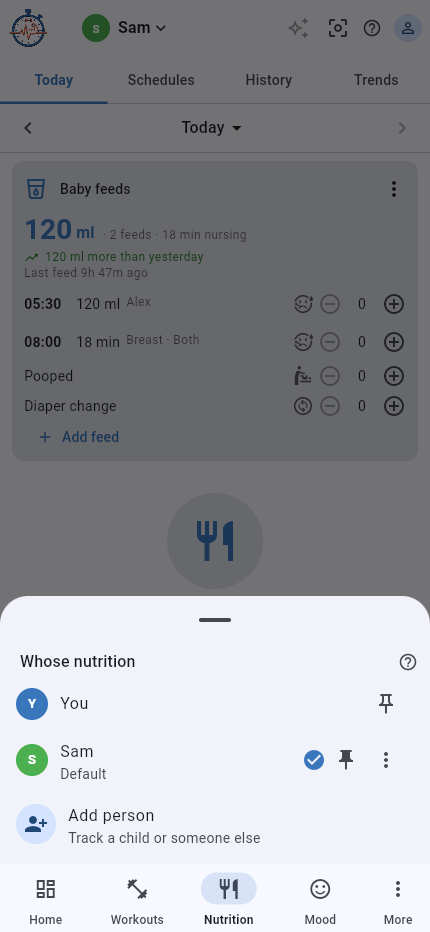
Keep nutrition for a child or a partner next to your own, each with their own food, water, drinks and body weight.
For baby-only tracking, open Settings › Nutrition and turn off Track my own food, then pin the baby as the default nutrition person. Your own profile is hidden from the switcher, and Nutrition opens on the baby. Your default person is separate from Show on Home; changing the pin does not change whose baby feeds appear on Home. Open Person options beside a person for Share, Edit or Leave when available. Everyone you add lives in your account. The calorie guideline is rough and not medical advice.
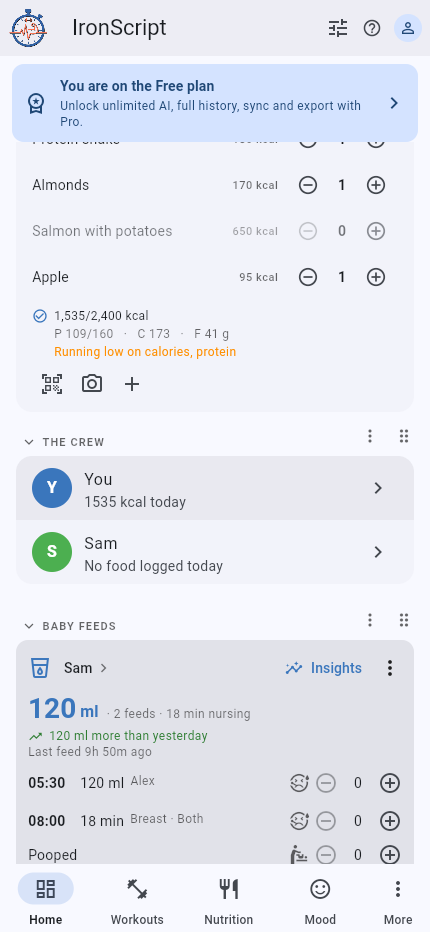
Co-own a person with a partner so you can both log and edit their nutrition, for example two parents tracking one child.
A co-owner can read and write only that one person. You stay in control: turn sharing off any time, and either side can leave.
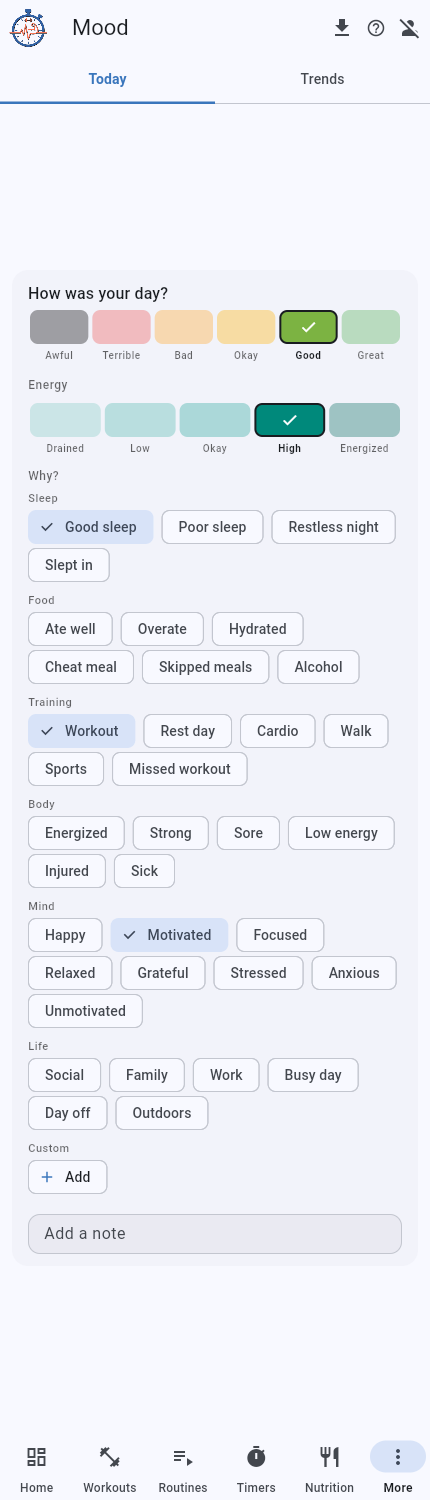
A ten-second log of how the day felt, how much energy you had, and why.
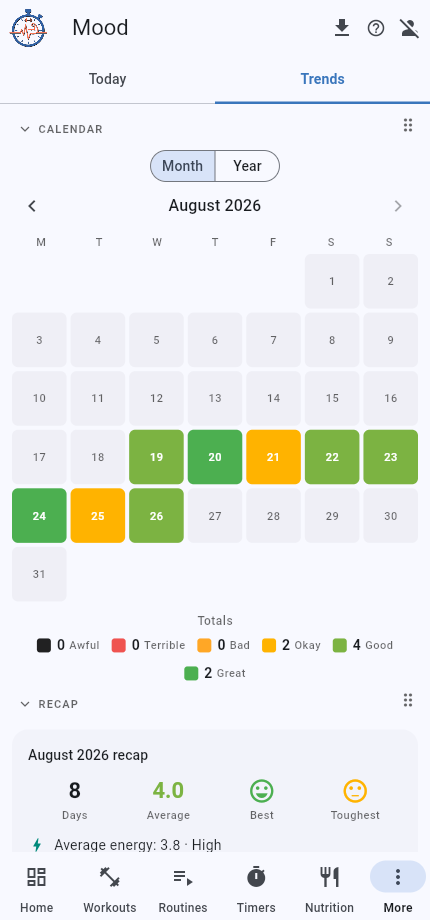
The calendar heatmap of your moods, plus a recap, a weekly trend and correlations.
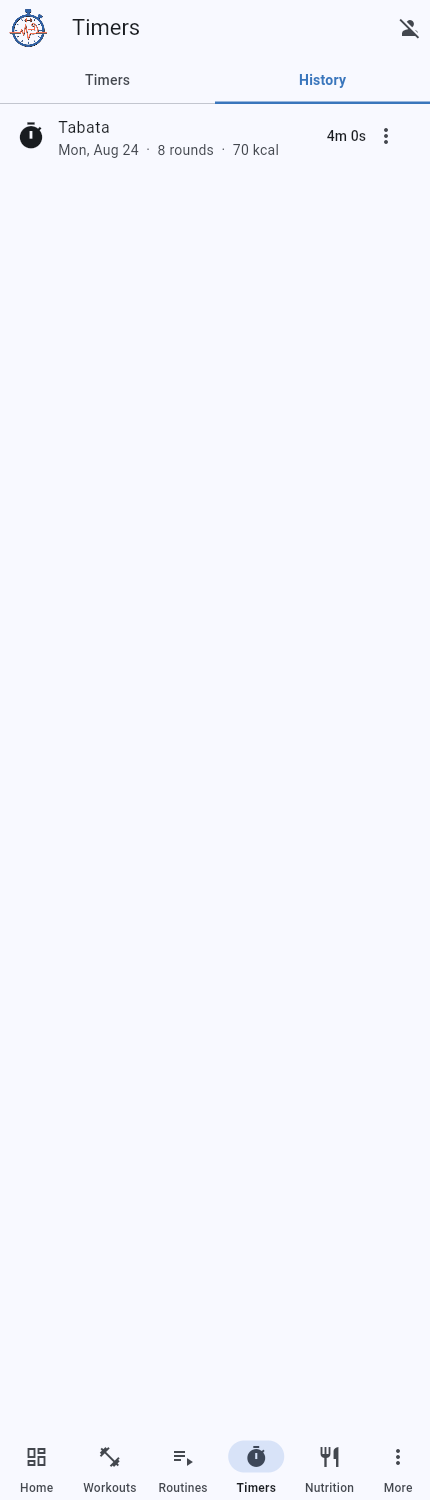
Every completed routine and timer run, recorded with its calories burned.
The done screen after a routine or a timer, where you record the burn for that session.
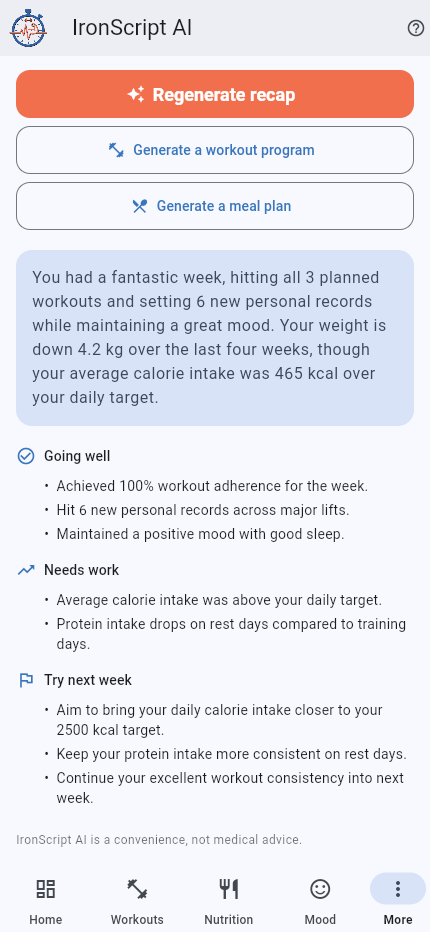
A plain-language weekly recap built from your own data, with optional AI helpers.
Have a conversation with IronScript AI, grounded in a short summary of your own tracked data.
The first use asks for consent. A summary of your recent workouts, nutrition and mood is sent to Google Gemini, not your raw logs. AI needs sign in and an internet connection. It is not medical advice.
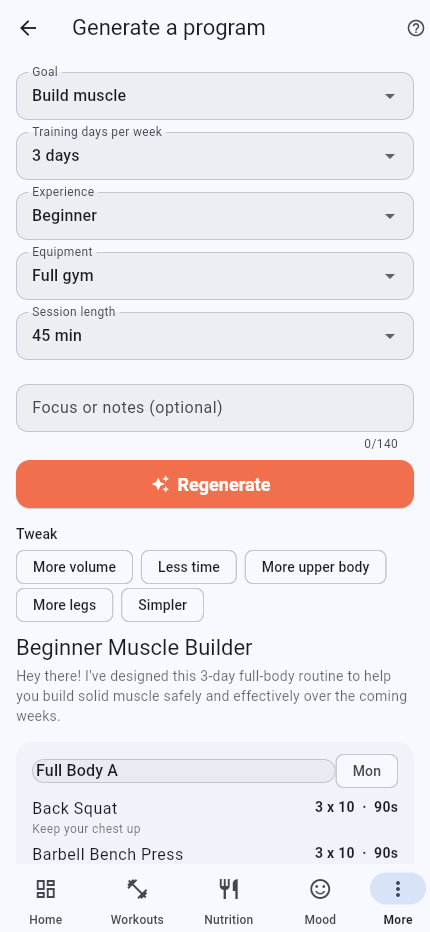
Answer a few questions and AI drafts a weekly training split you can save.
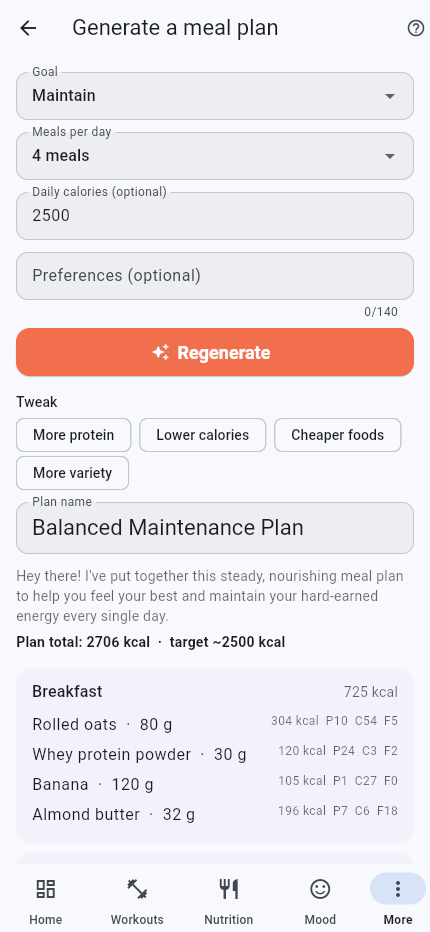
Tell it your goal and AI drafts a day of meals you can save as a schedule.
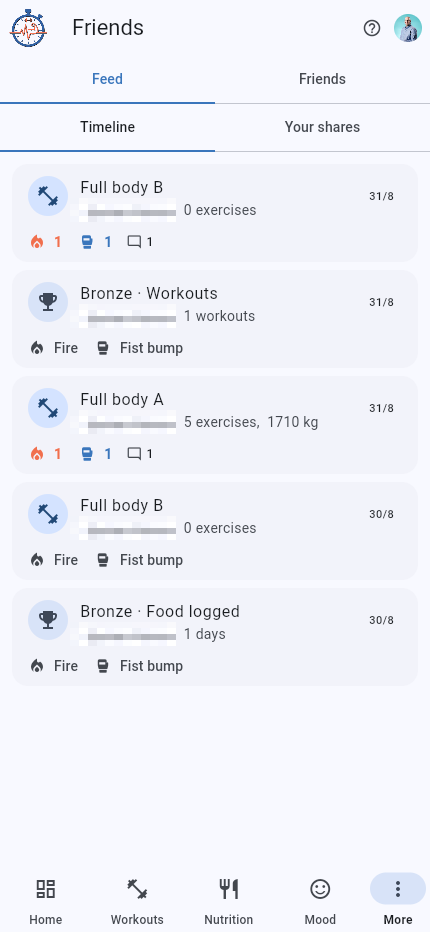
Follow friends by email, share your finished workouts on a timeline, and cheer each other on.
Flag a post from someone else if it raises a concern.
You cannot report your own post. Reports are sent to IronScript for review.
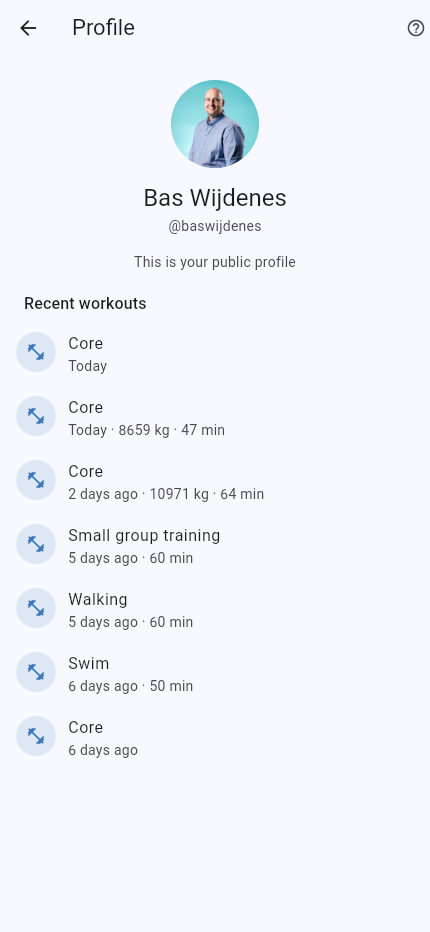
Turn on a public profile so anyone can find you and follow you, separate from your private friends.
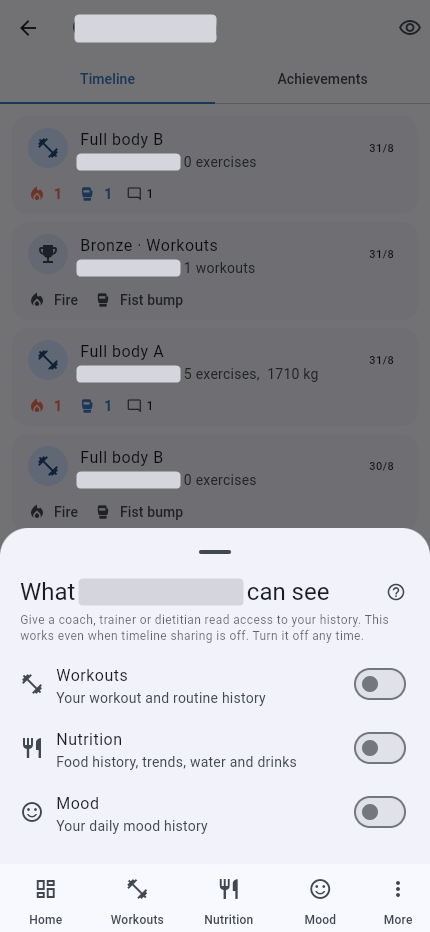
Give one friend read access to your workouts, nutrition or mood, without sharing anything on the timeline.
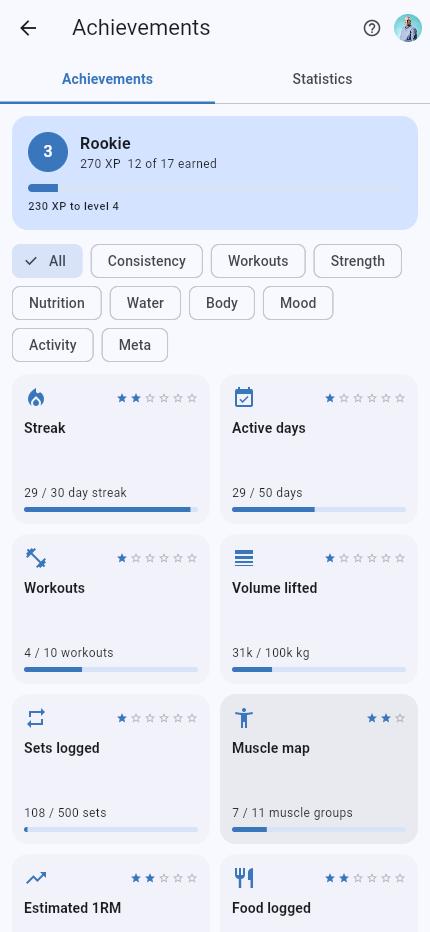
Earn badges across every pillar as you train, eat, hydrate and check in, and level up over time.
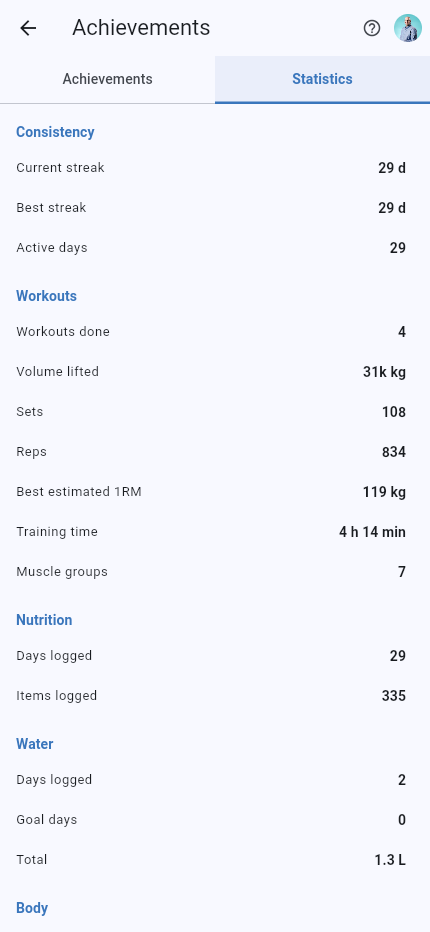
A hub of your lifetime totals across workouts, nutrition, water, body, mood and activity.
The choice you make on first launch, and can change later.
One screen for your account, display, navigation, AI and nutrition behaviour. The ones worth knowing:
| Account › Sign in | Back up your data online. Staying offline keeps everything on this device only. |
| Count workout & activity calories | On by default. Adds calories burned in workouts, routines and timers to that day’s food goal, so a training day lets you eat more. |
| Ask calories on timers from | Skip the calories step for short timers. Choose Always, or 1/2/5/10 min. Routines always ask. |
| AI calorie estimates | Let AI estimate calories for foods you add by photo or barcode. Opt-in, needs sign-in. |
| Hide AI features | Removes the coach and every AI estimate across the app. |
| Track my own food | Under Nutrition, turn this off if you only track another person, such as a baby. The person switcher then shows the people you track without your own profile. |
| Default nutrition person | Choose which person Nutrition opens on. The pin beside a person in the Nutrition switcher sets the same default. |
| Footer navigation | Choose where each tab lives: on the Bar, under More, or Hidden. |
| Keep screen on | Stops the screen sleeping during workouts, routines and timers. |
| Notifications | Choose live session notifications, mood and tracker reminders, and Friends and Crew updates. Android system permission is also required. |
| Connected apps | On Android, choose which data types IronScript syncs with Health Connect and grant each permission. |
| Theme / Time format / Units | Light or dark, seconds or mm:ss, kilograms or pounds, millilitres or fluid ounces. |
| Data & privacy | Download everything as a JSON file, manage shared links, or delete your account and all data. |
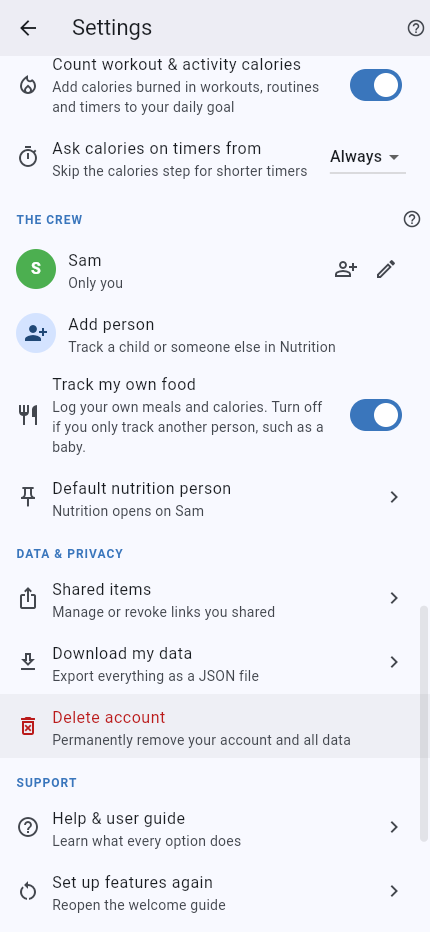
Keep your own meals visible alongside the Crew, or use IronScript just to track someone else.
The default person does not change whose Baby feeds card appears on Home. Choose that separately with Show on Home on the baby's card.
On Android, connect IronScript to Health Connect and choose each data type separately.
Turning sync off revokes IronScript’s access but does not remove records already written to Health Connect.
On Android, control session updates, reminders, Friends activity and shared Crew changes.
IronScript is free to use. Pro is an optional subscription that supports the app, at €3 per month or €30 per year. New accounts start with a 90 day free trial.
You can cancel any time. New accounts start with a 90 day trial of full access.
The same explanations live inside the app, so help is never far.
Good to know: the docs are public, so a topic can be shared as a direct link without signing in.